Using WordPress to create an image gallery
The WordPress blog, as one of the most popular open source blogging and content management systems (Douglass et al., 2006), provides an effective platform for users to access information (Williams et al., 2011), and helps users create a website to promote business or private life quickly and better (Leary, 2010). and accessibility is quite important in the changing world. Therefore, I choose to create an image gallery to highlight the idea of access and demonstrate advantages of accessing information through the WordPress blog.
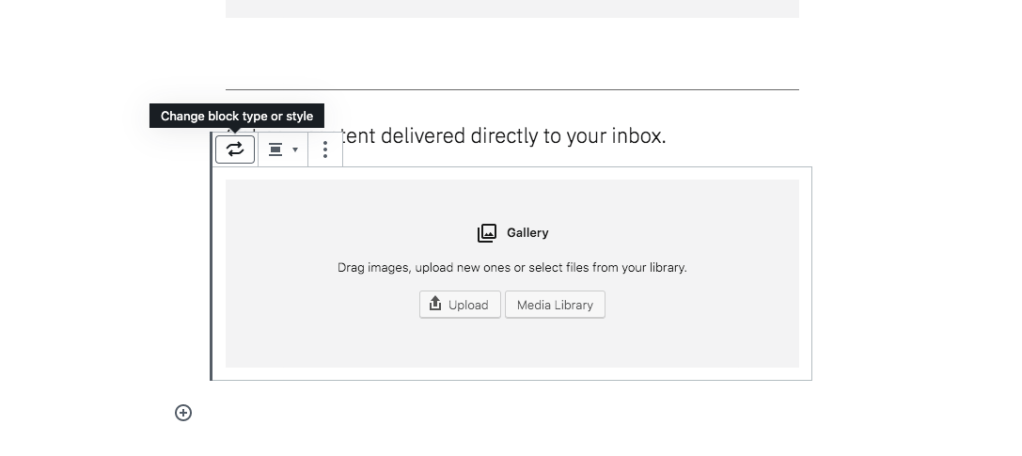
To create an image gallery, I followed three steps. In the first beginning, I created a new page, which was called “Gallery”, and added images to the gallery from the computer and then published. I could successfully see the image gallery after clicking the view page button and the image could be viewed in a larger size as long as I changed it into the media file. Next, in order to make it easy to view the next image on the gallery when one singular picture was opened, I added a feature box called “light-box”. With “light-box” features, I can click two items on both sides of the picture and view pre- or post- images directly. To add this feature, I installed a plugin called “WP Featurelight” to the WordPress and the items were shown on both sides of the image. WordPress boasts a framework that allows users to easily customize and extend it through plugins (Williams et al., 2015). Last, I added the image gallery to an Elementor page. I created the new image gallery with uploaded images in the page of Editing with Elementor page, and turned off the lightbox features. By doing so, I successfully added the image gallery to the Elementor page. The image gallery has been successfully created in my WordPress blog. The complete process of creating image gallery is shown as follows:
Step 1: Add new page, upload images and change these into larger size
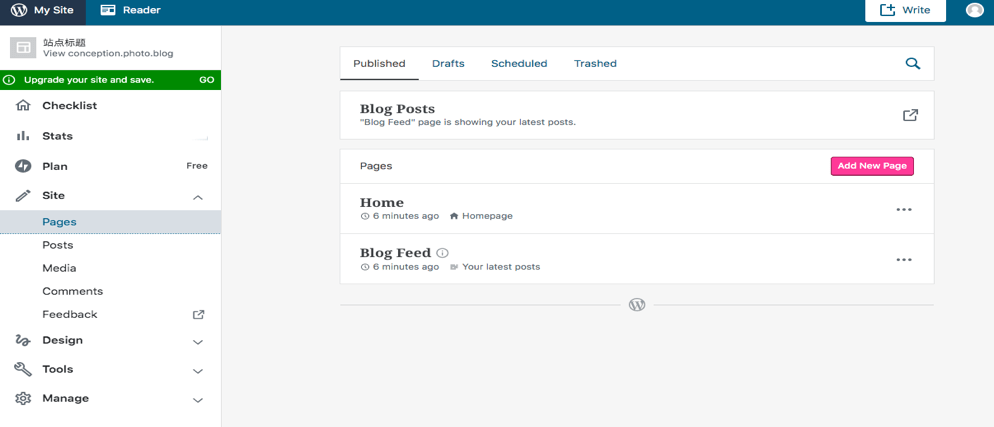
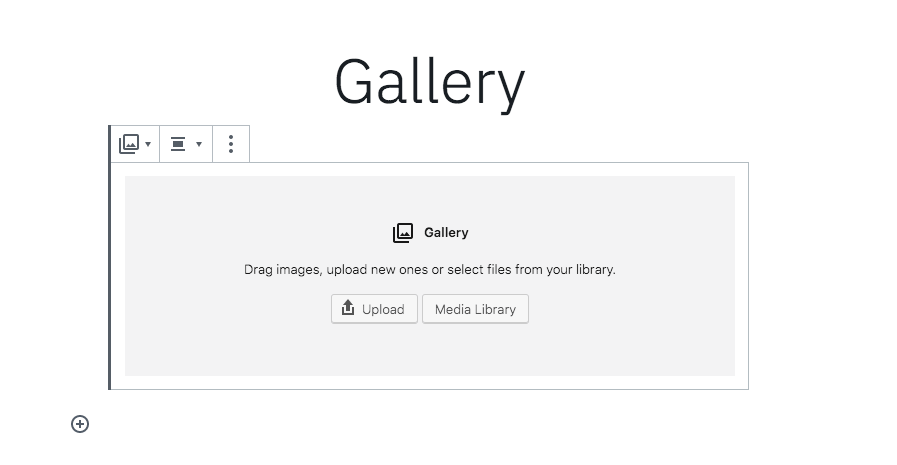
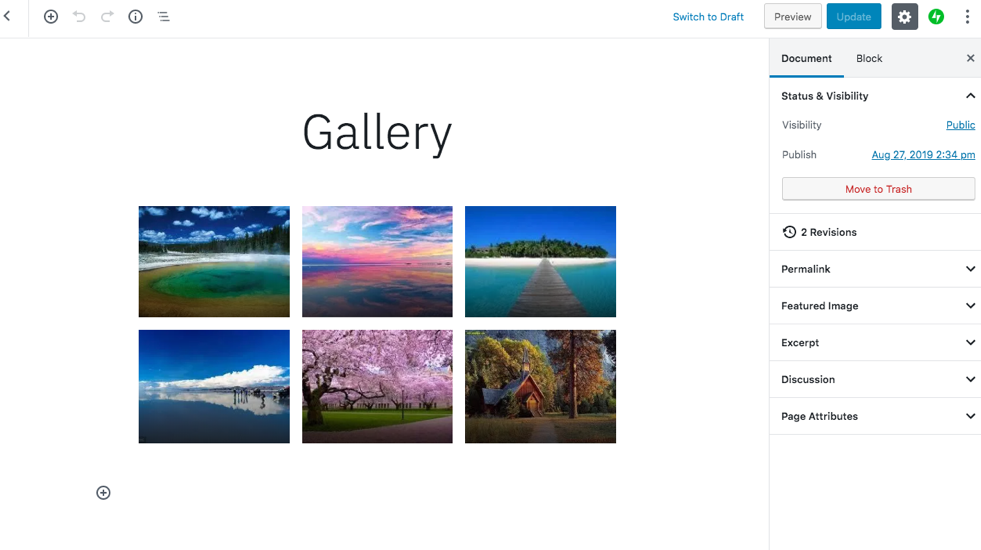
Step 2: Add “light-box” plugin
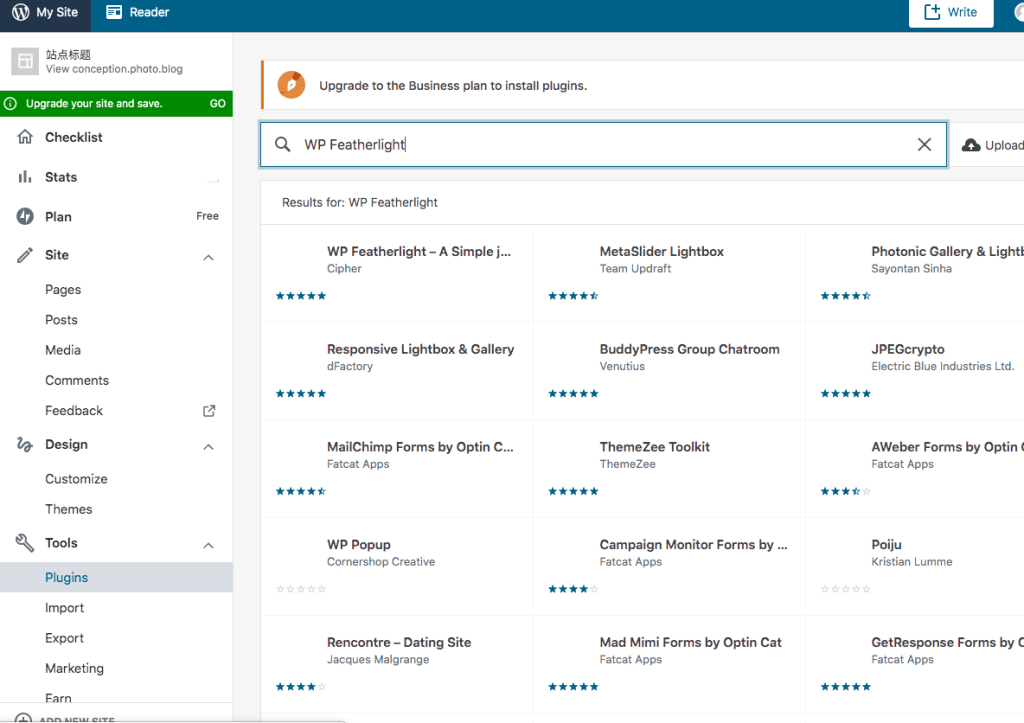
Step 3: Add the image gallery to the Elementor page
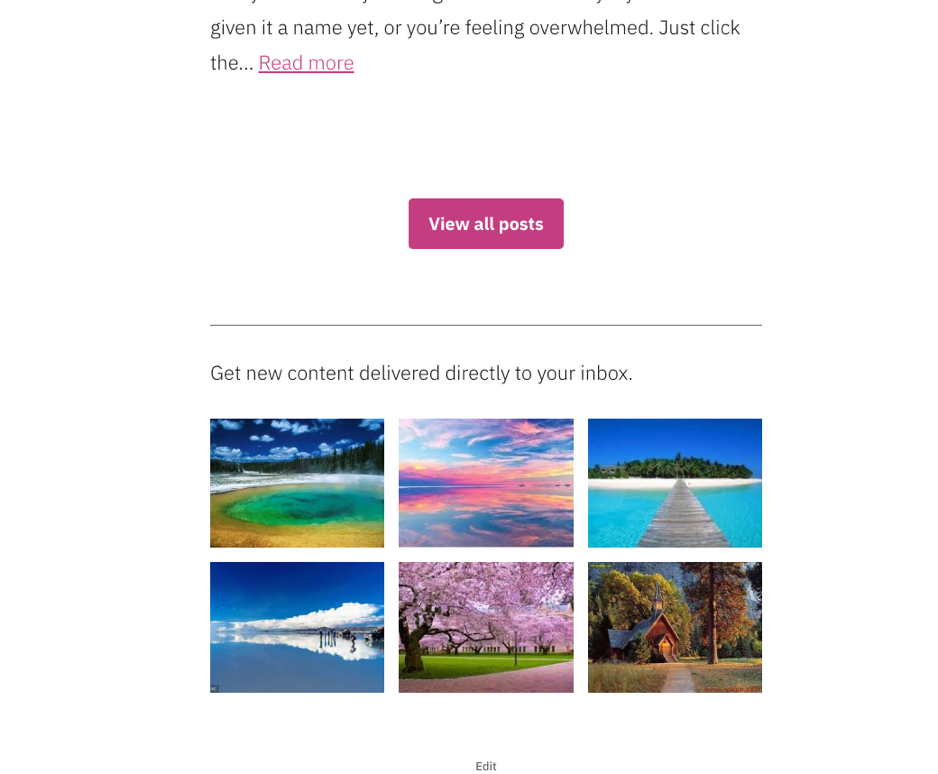
Accessibility is a significant characteristic for individuals and organizations. In my WordPress blog, I created an image gallery to experience an effective way to access hundreds of pictures, which is simply an example for the convenience and effectiveness that the WordPress blog conveys with accessibility characteristic. By doing so, my friends, family, even strangers could view my pictures and get access to my blog in an easy way, which is really helpful for information sharing and knowledge exchange. In conclusion, WordPress, as the most popular blogging and content management platform (Stern & Williams, 2010), is a powerful tool.
Reference:
Douglass, R. T., Little, M., & Smith, J. W. (2006). Building online communities with Drupal, phpBB, and WordPress. Apress.
Leary, S. (2010). Beginning WordPress 3. Apress.
Stern, H., Damstra, D., & Williams, B. (2010). Professional WordPress: design and development. John Wiley & Sons.
Williams, B., Richard, O., & Tadlock, J. (2011). Professional WordPress Plugin Development. Wrox Press Ltd..
Williams, B., Damstra, D., & Stern, H. (2015). Professional WordPress: design and development. John Wiley & Sons.

